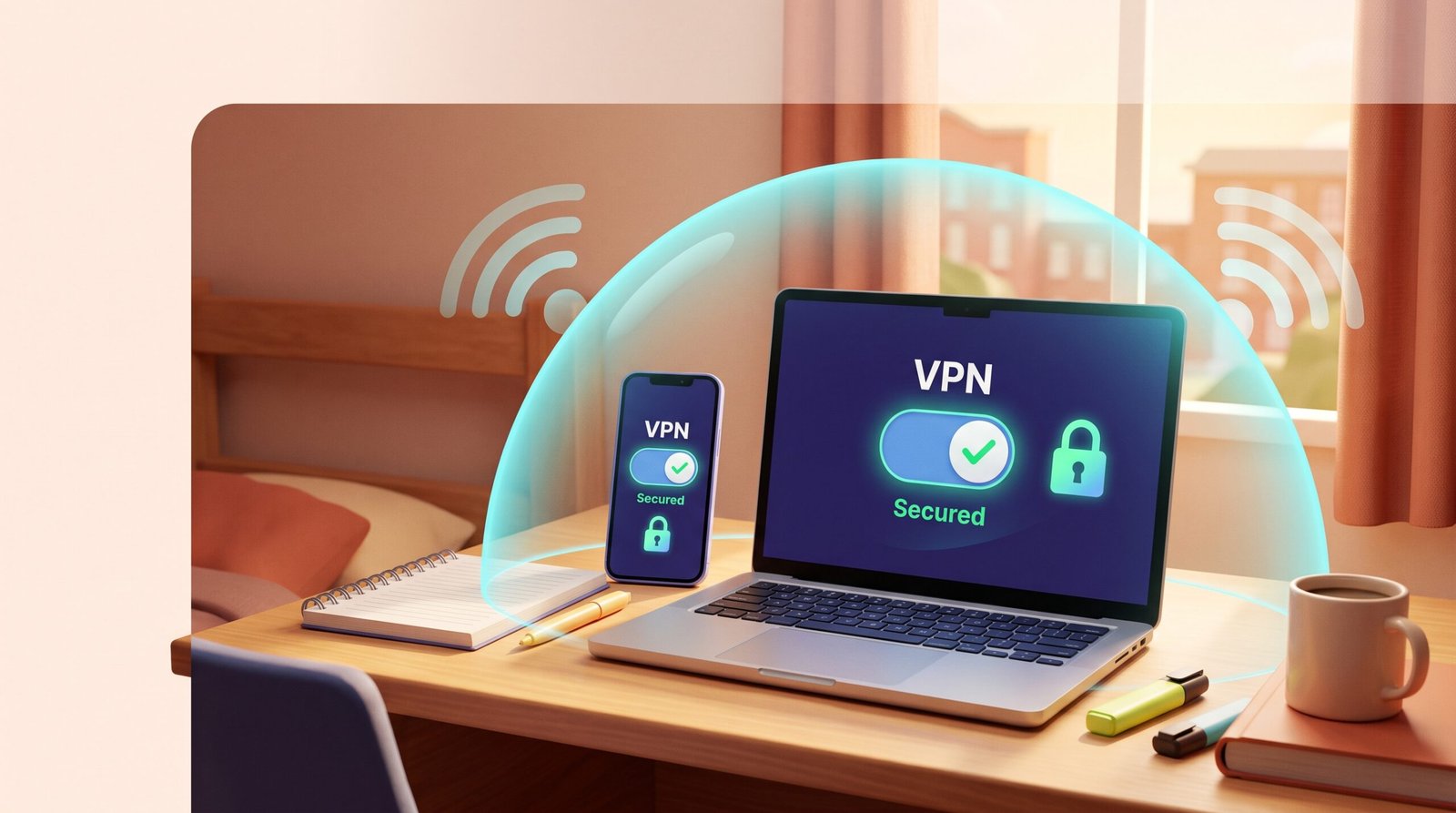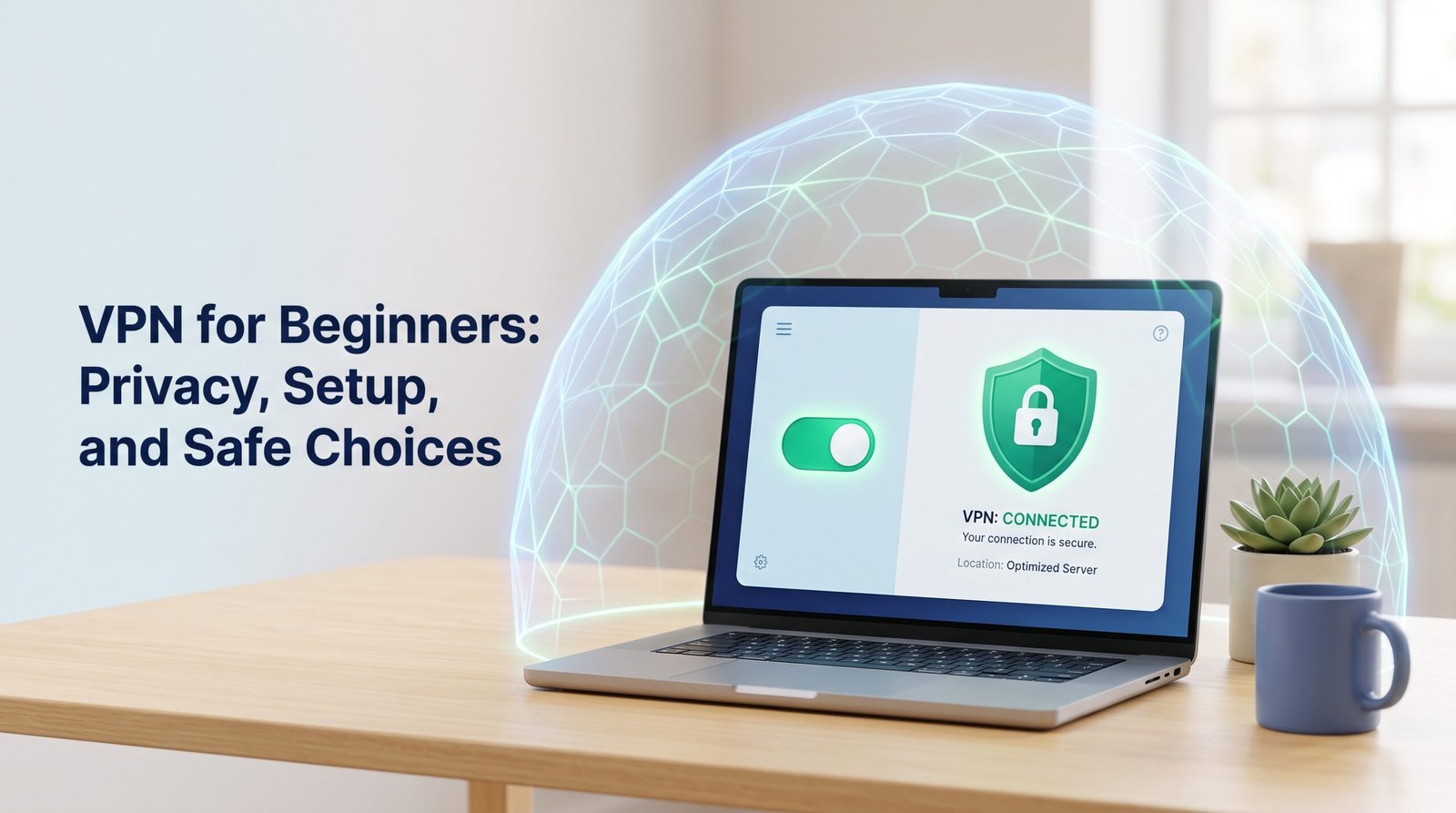
Your internet provider can see which websites you visit. On public Wi-Fi, other people on the same network may be able to watch where your traffic goes. A VPN, short for virtual private network, closes both gaps by encrypting your connection and hiding your IP address, the number that identifies your device online.
This VPN for beginners guide is written for people who have never installed one. No jargon without an explanation. No assumption that you know what a “protocol” or “kill switch” is.
A VPN protects your connection and location, but it will not stop phishing, malware, or a data breach at a company you already trust. That distinction matters more than any feature list. Once you understand what a VPN actually does, choosing and setting one up takes about ten minutes.
Online privacy starts with knowing where the protection begins and ends. This guide walks through both.
What Does a VPN Protect—and What Does It Not?
A VPN protects the connection between your device and the internet. It does not protect you from mistakes you make once you’re online.
A virtual private network works by building an encrypted tunnel, a secured pathway for your data, between your device and a VPN server run by your VPN provider. Encryption scrambles your data so only your device and the server can read it. Anyone watching the network in between sees nothing useful.
How Does an Encrypted Tunnel Work?
When you turn on your VPN connection, your device encrypts your traffic before it leaves. That encrypted data travels to the VPN server, which then sends your request out to the website or app you’re using. The site sees the VPN server’s IP address, not yours. Think of it like sending your mail through a P.O. box: your letters are sealed, and anyone watching only sees the box, not your home address.
Different VPN protocols, the technical rules that govern how the tunnel is built, affect speed and security differently. WireGuard is a newer protocol known for being fast and lightweight, and many modern VPN apps use it.
What Can Your Internet Provider and Websites Still See?
Your internet provider can see that you’re connected to a VPN, but not which sites you visit once the tunnel is active. Websites you log into, think Google or your bank, can still recognize you by your account, regardless of your IP address.
Why Won’t a VPN Stop Phishing, Malware, or Data Breaches?
A VPN encrypts your connection. It does not scan files, block fake login pages, or stop a company from losing your data in a breach.
If you type your password into a scam site, encryption does not help. That’s a browsing decision, not a network one. A VPN also cannot undo a breach at a retailer or bank that already stored your information insecurely.
A Short Glossary of Terms You’ll See in VPN Apps
- Server location: the country or city where the VPN server you’re connected to is physically located
- No-logs policy: a provider’s promise not to record your browsing activity or connection history
- Kill switch: a safety feature that blocks your internet if the VPN connection drops unexpectedly, so nothing leaks out unprotected
When Does a VPN for Beginners Help?
A VPN for beginners helps most on networks you don’t control and least when you’re already logged into an account. The value depends on the situation, not the app itself.
Using Public Wi-Fi at Airports, Hotels, and Cafés
Public Wi-Fi is the clearest case for a VPN. Anyone sharing that network could try to intercept your traffic, and a VPN’s encryption blocks that. Connect to one of your provider’s VPN servers before you open email, banking apps, or anything with a password, not after.
Limiting What Your Internet Provider Can See
At home, your internet provider can normally see every domain you visit. A VPN hides that from them, leaving only the fact that you’re using a VPN. This supports basic online privacy without changing how any of your apps work.
When a VPN Adds Little Protection
If you’re logged into Google, Facebook, or your bank, that service still recognizes you by your account. A VPN hides your IP address, not your identity once you’ve signed in. It won’t stop a website from remembering you through cookies, either.
How Do You Choose a Beginner-Friendly VPN?
A beginner-friendly VPN should connect in one tap, publish a clear no-logs policy, and cost a flat monthly rate with no long contract. Skip anything that requires manual configuration to get started.
Look for One-Tap Setup and Clear Privacy Terms
The easiest VPN apps have a single, obvious connect button, often labeled “quick connect,” that picks a fast server for you automatically. Look for a VPN service that states its no-logs policy plainly, in language you can actually read, not buried in legal text. WireGuard support is a good sign, since it’s fast and widely trusted.
Check Monthly Pricing Before You Commit
Pick a VPN you can pay for month to month before locking into a longer plan. This lets you test speed, reliability, and how the app feels on your devices without a big upfront cost.
Are Free VPNs Safe to Use?
Some free VPNs are safe, but many pay for their servers by collecting and selling user data. Before installing any free VPN, check whether it publishes a no-logs policy and who owns the company. If a company won’t say how it makes money, assume your data is the product.
How Do You Set Up a VPN on Your Devices?
Setting up a VPN takes a few minutes on either a phone or a computer, and the steps are nearly identical: download the official app, sign in, and tap connect. For most people starting out with a VPN for beginners setup, the default settings are all you need.
Connect on a Phone Using Your VPN’s App
Download your provider’s VPN app from the official app store, not a third-party site. Open it, sign in with your account, and tap the quick connect button. The app should confirm you’re protected within a few seconds.
Connect on a Computer Using Your VPN’s App
Download the app directly from your VPN provider’s website. Install it, sign in, and click connect. Look for a small icon in your system tray or menu bar confirming the VPN connection is active.
Use the Official WireGuard App with a QR Code or Setup File
Some providers let you skip their own app and use the official WireGuard app instead. Your provider gives you a QR code or a setup file; you scan or import it into the WireGuard app, and it builds the encrypted tunnel using that provider’s server details. This route works well if you want a lighter, more minimal app with fewer extra features.
Check Your Connection and Understand the Kill Switch
After connecting, most apps show a green indicator or “protected” label. If your app or device offers a kill switch, turn it on so your internet cuts off automatically if the VPN drops, preventing unprotected data from slipping through. DNS leak protection, a feature that keeps your site lookups routed through the encrypted tunnel instead of leaking outside it, is also worth checking for in your app’s settings.
What Common Mistakes Should You Avoid?
The biggest mistake beginners make is assuming a VPN provides total anonymity. It provides strong privacy for your connection, not invisibility for your identity.
Don’t Assume a VPN Makes You Anonymous
Logging into an account still identifies you to that service, VPN or not. Websites can also track you through cookies and browser fingerprinting, a technique that identifies your device by its unique settings and configuration. A VPN reduces tracking; it doesn’t eliminate it, as explained in Privacy Guides’ overview of how VPNs work.
Leave Advanced Settings Alone Unless You Need Them
Most beginner apps work well on default settings. Split tunneling, a feature that lets you send some apps through the VPN while others use your regular connection, and obfuscation, which disguises VPN traffic as regular traffic, are useful in specific cases but unnecessary for everyday privacy. Changing VPN protocols or server settings without a reason can cause slower speeds or dropped connections.
Is Using a VPN Legal in the US?
Yes. Using a VPN is legal in the United States for everyday privacy, work, and browsing. It does not make illegal activity legal; it simply encrypts your connection.
Will a VPN Slow Your Internet?
A VPN can slow your connection slightly, since your data now travels through an extra server. Choosing a VPN server close to your actual location usually keeps the slowdown small enough that you won’t notice it during normal browsing.
Start with a Simple, Trustworthy Connection
The right VPN for beginners should be simple to set up, clear about its privacy practices, and affordable enough to try without a long commitment. That combination is what makes a tool something you’ll actually keep using.
VPNSoEasy is one option built for exactly that: it costs $5 a month, has no long-term contract, and can be canceled anytime. It uses WireGuard encryption and states a strict no-logs policy.
Whatever you choose, the habit matters more than the brand. Turn your VPN on before you join public Wi-Fi, keep it running at home if privacy from your internet provider matters to you, and pair it with strong passwords and multi-factor authentication for the risks a VPN was never built to solve.